
Buy & Sell Tokens
Select launch wallets, configure the trade amounts, and submit manual buy or sell orders from the Live Workspace.
Per wallet
Buy on the left, Sell on the right : one wallet.
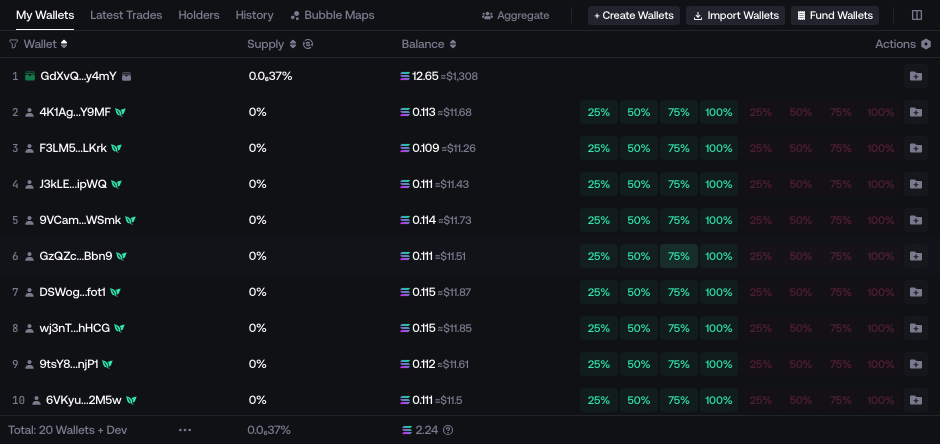
Global panel
Choose Market , then Holders for holder wallets or Deployer for the deployer wallet.
Example: with SOL displayed, entering 0.1 buys with 0.1 SOL.
Buy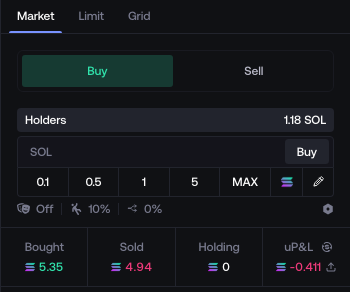 Sell
Sell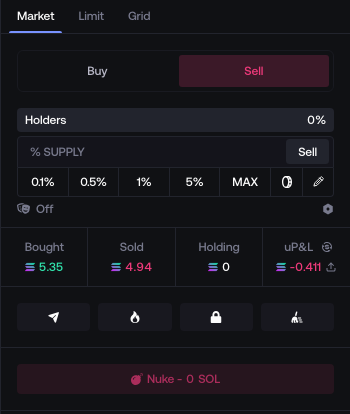
- Choose wallets
- Set the amount
- Buy or Sell
Amount units and trading modes
Buy : enter an amount in the displayed quote currency or use % Balance. Sell : use % Owned, or % Supply / Token according to your input preference. A quote-value target is available on SVM networks only.
Market Buy or sell against the current market with the selected wallets.
Manual trading does not require a launch in Manual mode.
Check wallets, amount and balances before submitting. Check each wallet’s result before retrying.
Panel settings
Open the settings icon, adjust Buy or Sell, then select Save Settings.
- Slippage : Maximum price change you accept.
- Dispersion : How many wallets participate.
- Wallet Selection : Which wallets to choose.
- Amount Distribution : How to split the buy amount.
Dispersion, wallet selection and distribution apply to multi-wallet buys.
How wallets buy
Stagger : Buy wallet by wallet, with the configured delay.
Parallel : Send the buys together, in separate bundles.
Multi-wallet buys only, independent of launch mode. Parallel is not Block-0 and does not guarantee identical prices.
Options and availability
Main: Slippage ; Dispersion for multi-wallet buys. Higher dispersion selects more wallets. Alternative Routing appears on supported networks.
Advanced, multi-wallet buys only: Wallet Selection (Random, Low Tokens, High Tokens) and Amount Distribution (Equal, Random with deviation, Weighted by native balance).
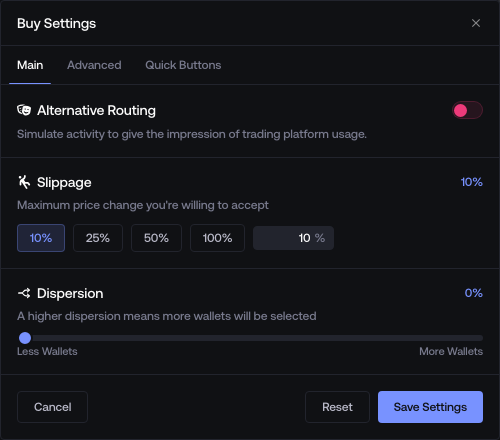
Quick Sell sets your preset sell amounts. Alternative Routing appears on supported networks.
Available Sell settings
Quick Buttons, plus Main → Alternative Routing on supported networks. No Buy-side Slippage , Dispersion or Advanced tab.
Quick Buttons
- Quick Buy / Quick Sell : edit preset amounts for the wallet category and unit.
- Instant Trade : quick buttons submit immediately when on; fill the amount when off.
- Confirm Dev Trades : confirm deployer trades. Both switches are shared by Buy and Sell.
General settings
Customize trade controls and shortcuts in Trade.


Other order modes
Limit and Grid appear only on supported networks and launchpads.
Limit
Set an amount at one target market cap. Buy targets are at or below the current market cap; sell targets at or above it.
Grid
Spread the amount across several market-cap levels, with the same buy-below / sell-above direction.
These modes create or update Limit Orders in Auto Buy / Auto Sell or Auto Buy / Auto Sell. Check wallets and session limits: an existing session keeps its start delay and global end conditions.
Nuke: confirmation and wallet scope
Nuke sells all tokens from the included wallets.

Wallet scope and confirmation details
Nuke uses saved Sell settings. Include Dev adds the developer wallet; Consolidate Supply groups the included supply before selling.
Check the value, Include Dev Wallet if available, and Consolidate Supply before Confirm Nuke. This confirmation is separate from account 2FA.
 stonks.fun Locked-pool Nuke
stonks.fun may offer a locked-pool Nuke, separate from a normal market sell.
Inspect every wallet result and current balance. Do not immediately resubmit after a partial or reported failure.